How to transfer software to a RC2014 - reliably!
Update: 06/01/2026
Something seems to have changed in the way the Raspberry Pi sets up serial ports by default between the time I wrote this article and later versions of Raspberry Pi OS (bookworm) through to the current release (trixie). After a lot of experimentation, the following method now appears to work reliably with the RC2014 SIO/2 module and SD card module. I've not had a chance to retest the 68B50 and compact flash modules yet, but I expect the same approach will work. The same approach works with the 68B50 and compact flash module. It may be less sensitive than the SIO/2 module on timings - it seems possible to reduce the character delay below 13ms and for it to still work.
After plugging in the RC2014 to the Raspberry Pi (and before running minicom), reset the (/dev/ttyUSB0) serial port with the command:
sudo stty -F /dev/ttyUSB0 0:0:0:0:0:0:0:0:0:0:0:0:0:0:0:0:0:0:0:0:0:0:0:0:0:0:0:0:0:0:0:0:0:0:0:0If this is the first time you've used it, setup minicom (I've tested version 2.8 under bookworm and 2.10 under trixie and both seem fine) as detailed in the original article.
However, before pasting the contents of the file packager output into the minicom window, ensure that the terminal settings ('T' menu) use a new line tx delay of 50 ms (originally 100ms) and a character tx delay of at least 13ms (originally 3ms).
Some experimentation may be required with the character tx delay parameter. On my hardware (a Pi4B and a Pi5 using a 232R ftdi cable) 15ms or 20ms seems absolutely solid, 12ms is often too fast (it usually results in DOWNLOAD.COM reporting a CHECKSUM ERROR) with 10ms and below causing the transfer to hang or report a FILE LENGTH ERROR.
Up until yesterday, I've never been 100% successful at transferring CP/M software to my RC2014. I've managed to get files across using the file packager and DOWNLOAD.COM, but I've often hit reliability problems when using my Windows 10 PC - especially with PuTTY, TeraTerm or the version of Minicom (2.6.2) embedded in the MobaXterm application. Setting different delays and making sure I was using RTS/CTS all helped mitigate, but never completely fixed the issues I was seeing. And I don't (yet!) have the SIO/2 serial module to allow me to easily play around with different baud rates. zmodem or kermit.
Anyway. I decided to abandon the PC in favour of experimenting with different tools on a RaspberryPi. Having struggled to get very far with GTKTerm, I've managed to get Minicom to work reliably for me. This is my configuration (since I'm bound to forget what I did at some point in the future).
Raspberry Pi: Raspberry Pi OS (bookworm) installed on a 4GB model 4B.
Minicom: sudo apt install minicom currently installs version 2.8 (according to minicom -v).
To set minicom up for first use: sudo minicom -s This allows the default configuration in /etc/minicom/minirc.dfl to be modified.
Serial Port Setup

Save these settings. Then use Ctrl-A, Z to access the Minicom Command Summary screen:
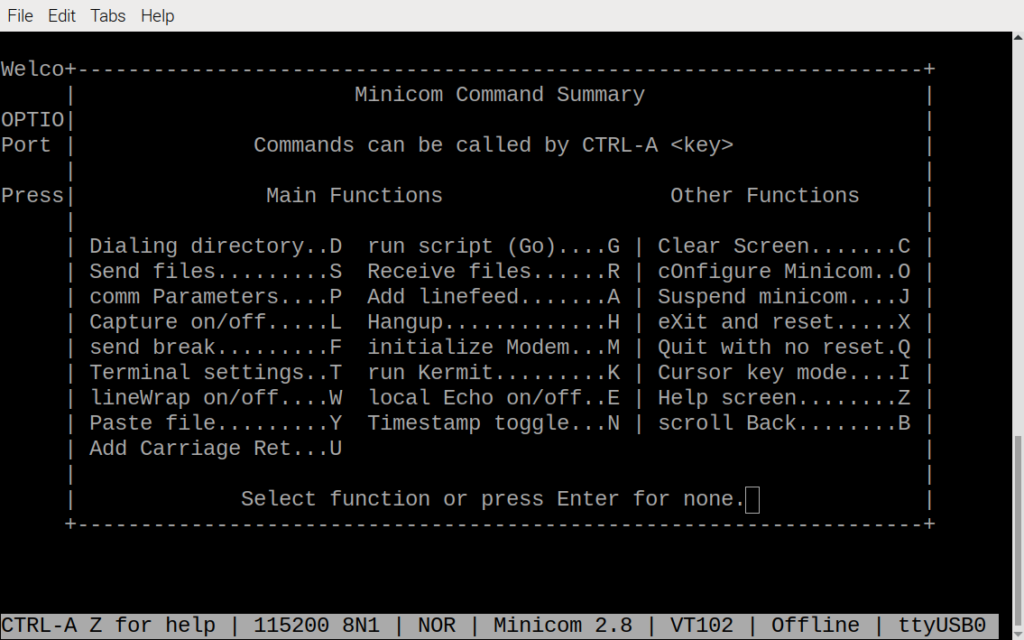
Terminal Settings
Choose 'T' for Terminal settings, and adjust the newline tx delay parameter to something large (100 ms works well for me) and the character tx delay to 3ms. It may be possible to use lower values, but I'm simply after reliability here, especially when transferring multiple files at the same time.

Unfortunately this last step seems to be needed every time Minicom is run, as the terminal configuration doesn't seem to be saved in the minicom.dfl file (or anywhere else).
That's it! You can use the packager application on Windows to prepare files for transfer before using DOWNLOAD.COM, or alternatively use the one hosted on the RC2014 website.